Go to Settings > Tools > Inspection Sheets > Select “+Add New” option at the bottom right of the screen.
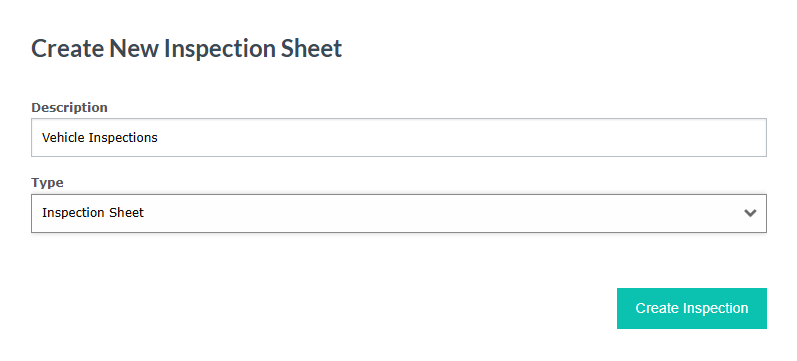
The Description is going to be the type of check or inspection performed (Body Inspection,GA1,etc).
The Type can be chosen via the dropdown selection.
After clicking “Create Inspection” this will create a new group based on the details entered.
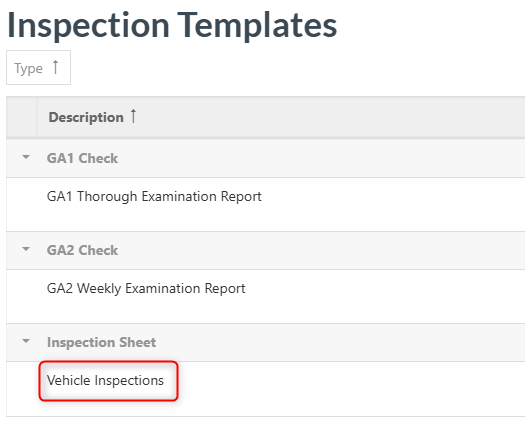
You can then create different inspections within this group by clicking “details” first to open the group and then by clicking “Add new section” at the bottom right of the screen.
I added in two for this example “Visual Inspection” & “Undercarriage Inspection”
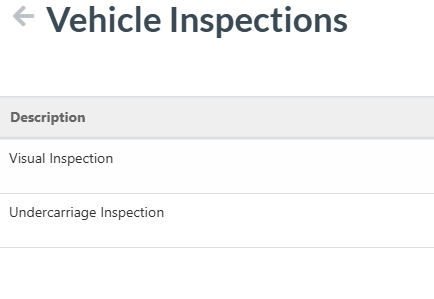
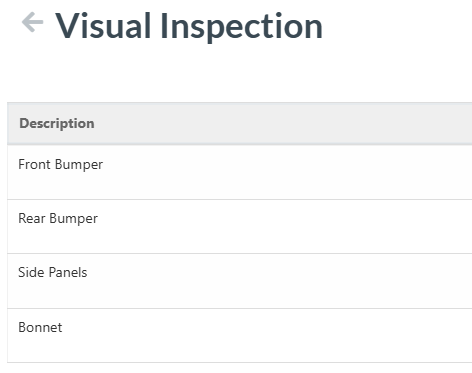
You can then click into each section and start adding in the checks you would like to see on the inspection sheets by going into the section and then selecting the button at the bottom right “ + Add New Check”. I added 4 checks into the Visual Inspection section in this example shown below.
In the workshop or vehicle walk-around view, select "Performance Section." as highlighted below (inside a workshop job) and then select “Perform Inspection”.
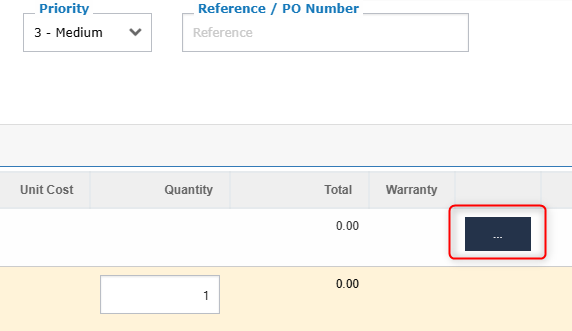
Choose your desired Inspection Sheet from the Dropdown.
Completing the inspection will embed the results directly into the associated Job card for you.
Was this article helpful?
That’s Great!
Thank you for your feedback
Sorry! We couldn't be helpful
Thank you for your feedback
Feedback sent
We appreciate your effort and will try to fix the article