What the Purchases module is for
The Purchases module is where you buy stock from suppliers and bring it into Turbo. It covers the full inbound journey: deciding what to order, placing the order, receiving the goods into the right location, and passing the cost through to your accounts.
This area is about planning what you need, comparing suppliers, approving purchase orders and receiving goods into the right location or bin, or directly against a project.
Purchasing also connects to the rest of the system. Stock you receive becomes available for sales, hire, workshop jobs and projects, and the transactions sync to your accounting package, such as Big Red Cloud, Xero, QuickBooks or FreeAgent.
In short, if stock comes into the business from a supplier, it should come in through Purchases. That is what keeps your stock levels, costs and supplier records accurate.
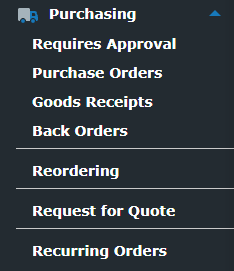
In Turbo Inventory, if you look at the left side menu panel and expand the Purchasing Option, you will see the below options available:
How purchasing flows through Turbo
In Turbo, a purchase order can move through six different stages: Draft, Submitted, Confirmed, Partially Received, Fully Received and Closed. Each stage tells you, at a glance, where an order stands.
- Identify the need. A product falls below its reorder level, a customer order needs stock you don't have, or a project needs materials. Each product can hold reorder levels that trigger alerts and preferred suppliers, which helps here.
- Get prices if needed. For a new item or a large order, ask suppliers for a quote first. Turbo has a separate Request for Quote (RFQ) feature for this, so quotes don't clutter your list of real orders.
- Draft. Create the PO with the supplier, items, quantities and agreed prices. Nothing is committed yet, so you can still change it.
- Submitted. The PO is sent to the supplier. From this point the items count as on order.
- Confirmed. The supplier has accepted the order, ideally confirming price and delivery date.
- Partially Received. Some goods have arrived. You receive what came in, into the correct location or bin, and the rest stays open on the PO.
- Fully Received. Everything ordered has arrived and been booked into stock.
- Closed. The order is complete. The supplier invoice can be checked against the PO and receipt before payment.
When goods are received, Turbo updates several things at once: stock levels rise, costs are recorded, the outstanding order quantity falls, supplier history is updated, and the stock becomes available to sell or use. Every receipt is also logged as a transaction, giving you a full audit trail of where stock came from.
Why raise a purchase order?
A Purchase Order (often abbreviated to PO) is your written record of what you agreed to buy, from whom and at what price. Even in a small business where the owner does all the buying, it pays for itself in several ways.
- Turbo knows what's coming. Open POs show as stock on order, so you don't reorder something that's already on its way.
- Receiving is faster and more accurate. You open the PO and confirm what arrived, rather than keying it in from scratch. Short deliveries and wrong items stand out straight away.
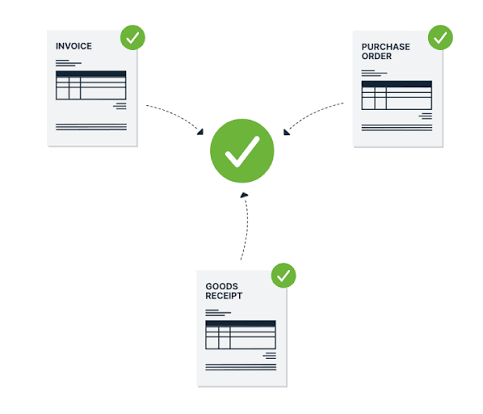
- Invoices can be checked. You compare the supplier's invoice against the PO (what you agreed) and the receipt (what arrived). This is called a three-way match, and it catches overcharges and billing for goods never delivered.
- Suppliers get a reference. Many suppliers ask for a PO number and quote it on delivery dockets and invoices, which makes matching paperwork easy.
- Cash flow is visible. Open POs show money you have committed but not yet paid.
- Supplier performance is tracked. Turbo builds up order history, spend and delivery performance for each supplier, which helps you compare prices and spot late deliverers.
- Costs are right. Receiving against a PO records the correct cost price for each item, which flows into stock valuation and margins.
(1) Raising a Purchase Order (PO) in Turbo Inventory
You raise a PO from the Purchases module using Add New PO. A few minutes spent getting it right saves time at receiving and when the invoice arrives.
Navigation: Go to Purchasing > Purchase Orders > Click the + icon at the bottom right of the screen and choose Create Purchase Order
- Select the supplier. Their contact details and payment terms come from the supplier record.
- Add the items. Search by product name, SKU or barcode. Where a product has a preferred supplier and purchase price set, these fill in automatically for you.
- Enter quantities. Check the product's stock and reorder level first, so you order enough without overstocking. Watch the unit of measure, such as cases versus single units.
- Fill out relevant fields such as Checked By, basically anywhere you see an Asterix *, this field is mandatory.
- Confirm the prices. Use the price agreed with the supplier or from their quote. Correct prices here mean correct stock costs later.
- Set the delivery details. Add the expected delivery date and the location the goods should go to.
- Add notes if needed. Use these for delivery instructions or a quote reference.
- Save as Draft (if needed). Review the order. A draft can still be changed and doesn't count as on order yet.
- Submit the PO and send it to the supplier. The items now show as on order. When the supplier accepts, mark it Confirmed.
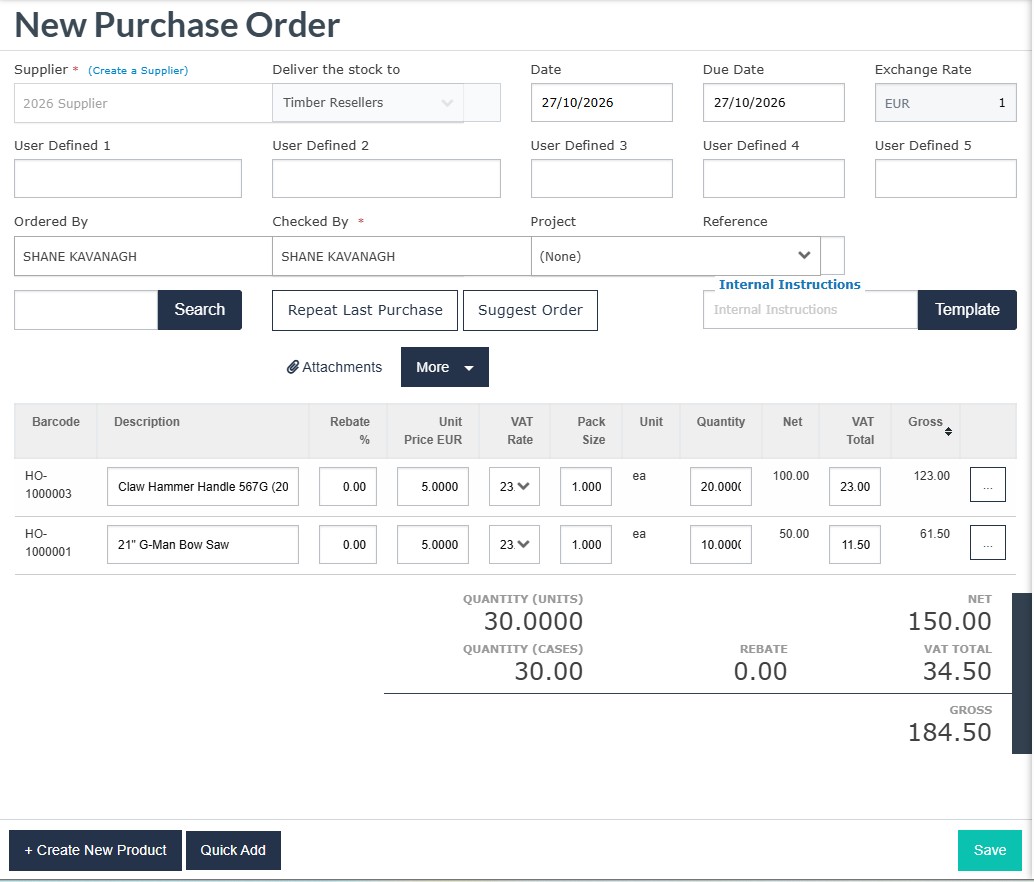
Once the PO is submitted by clicking Save on the above screen, It is given a PO Number and it stays within the Purchase Orders section until the goods arrive and you receive against it, as described in the next section.
(2) Receiving goods against a Purchase Order (PO)
Receiving against a PO is the standard way to book stock in. Because Turbo already holds the order, you confirm what arrived instead of keying it in, and any difference from the order shows up straight away.
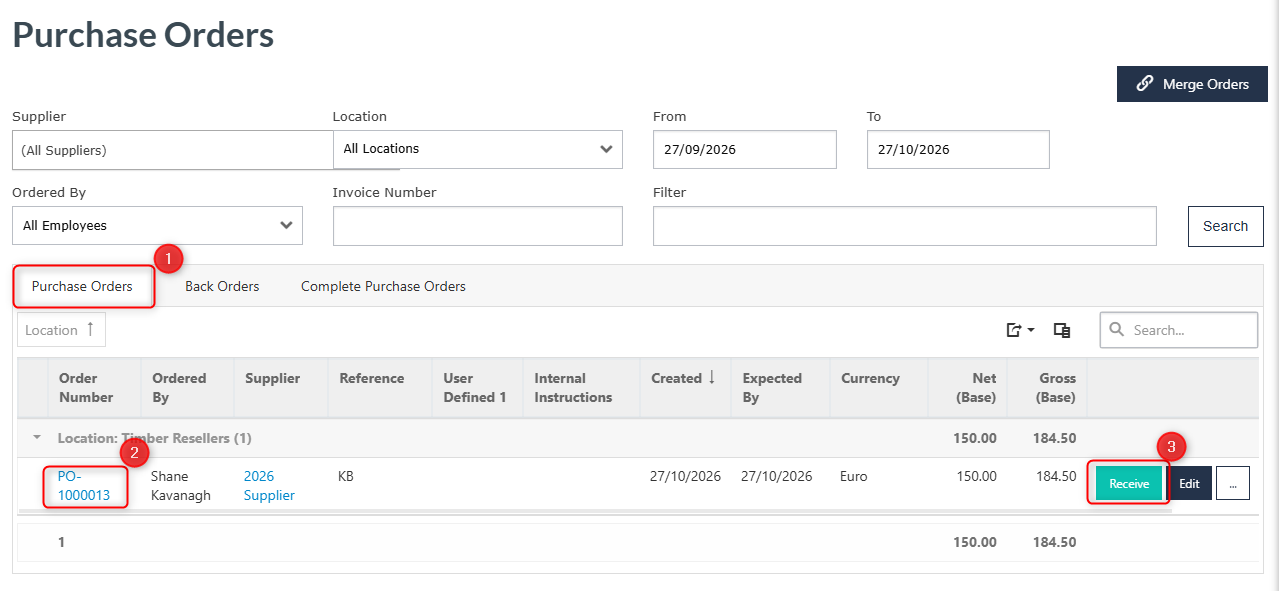
Navigation: Go back to Purchasing > Purchase Orders, in the Purchase Orders tab, find your Purchase order number and click Recieve on that order.
- Check the delivery. Count what arrived and compare it with the supplier's delivery docket. Note any damaged, wrong or missing items.
- Find the PO. Open Purchases > Purchase Orders and select the PO, or search by the PO number shown on the docket. The supplier, items, quantities and prices fill in from the order.
- Enter the quantities received. Change any line where the amount that arrived differs from the amount ordered. Don't book in damaged or wrong items.
- Check the cost prices. If the docket shows a different price from the PO, find out why before you change it.
- Choose the location or bin for each item.
- Complete the receipt. Click Yes on the final confirmation message shown below. Following this, stock levels rise, costs are recorded and the receipt is logged as a transaction.
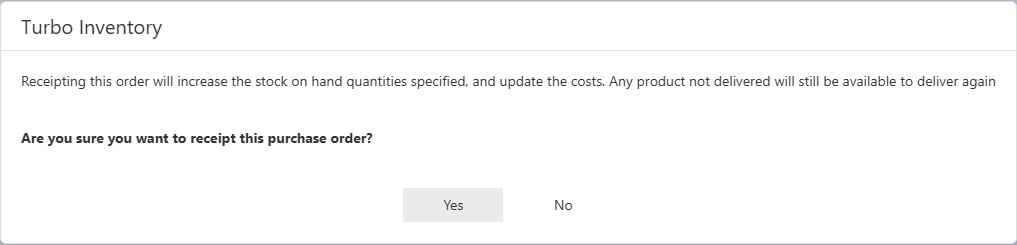
Turbo then updates the PO status for you:
- Partially Received if some items are still to come. The outstanding quantity stays on order, and you receive the rest against the same PO when it arrives.
- Fully Received once everything ordered has been booked in. When the invoice is checked against the PO and receipt, the order can be Closed.
NOTE: If the supplier tells you a short item won't be sent, update or close the outstanding line. Otherwise Turbo will keep showing it as on order.
(3) Creating the Invoice after Raising the Purchase Order & Recieving the Goods.
If you have created a Purchase Order and Recieved the goods in, you will then need to ensure this Purchase has been invoiced.
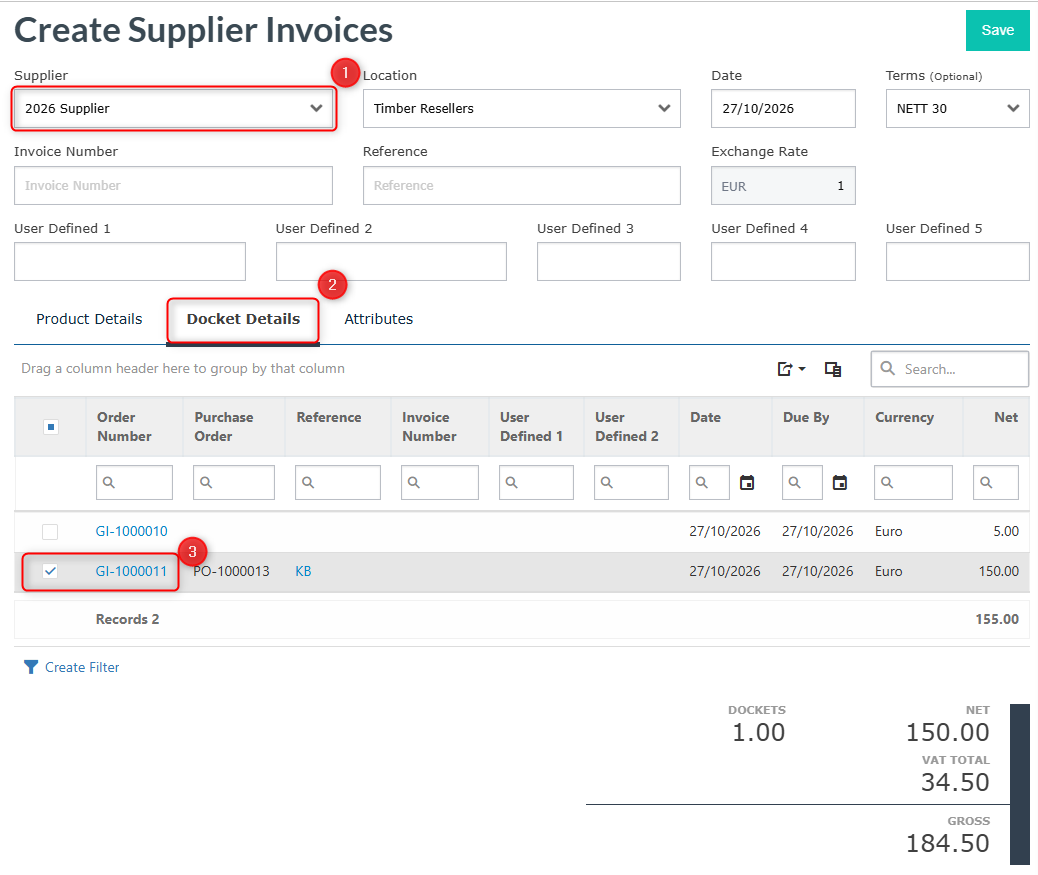
Navigation: Go to Suppliers > Invoices. Select the '+ Add Supplier Invoice' button located at the bottom right of the screen.
Then choose your Supplier, after the Supplier is selected, go to the Docket Details tab and you can select which Purchase Order this invoice relates to, then just click save to record the invoice. Its a good idea to record the PO number in the Reference section here to help cross checking later.
When you might not raise a PO
POs add a step, and not every purchase needs one. Turbo is flexible here: if you already order through another system and don't want to change, you can keep ordering there and use Goods Reciepts to add the stock in Turbo.
Common reasons to skip a PO include:
- Ordering happens elsewhere. You order through a supplier's portal, a rep, or your previous system, and only need Turbo to record the goods arriving.
- Small, one-off purchases. A box of cable ties picked up at the counter rarely justifies a full PO.
- Non-stock spending. Office supplies, fuel or services you don't track as inventory can go straight to your accounts package as a bill.
- Very low volume. If you buy rarely from a single supplier, the extra admin may outweigh the benefit.
The trade-off is control. Without a PO, Turbo can't show the stock as on order, and you lose the easy check of invoice against order. A good rule is to use POs for regular stock purchases and skip them for one-off or non-stock spending.
Receiving goods on Turbo without a PO
Goods that arrive without a PO are simply booked in through Purchases > Goods Receipts. Turbo also refers to these as receiving orders. The receipt here does the same job as receiving against a PO: stock rises, cost is recorded and the movement is logged.
- Check the delivery first. Count what actually arrived against the supplier's delivery docket, not what the docket says was sent.
- Open Purchases > Goods Receipts and create the new receipt for the supplier.
- Add a reference. Enter the supplier's docket or invoice number, or the PO number you generated for them into the Reference field. This is what lets you match the invoice later.
- Add each item and quantity. If an item isn't set up in Turbo yet, create the product first.
- Enter the cost price from the docket or invoice, so stock value and margins are correct.
- Choose the location or bin where the stock is going.
- Complete the receipt. Stock becomes available and the receipt appears in the transaction history.
- You will then be given the option when saving to convert this reciept straight into an invoice (This option is only available if you are NOT using a PO)
NOTE: Without a PO there is no agreed order or price to check against. Take extra care with the count in step 1, and check the invoice price before paying.
For a supplier you'll use again, consider raising POs.
Add New PO vs Generate PO Number
The Purchases module offers two starting points. Add New PO builds the full order. Generate PO Number reserves only the reference, for when someone needs the number before you can enter the order (which is often the case).
Add New PO | Generate PO Number | |
|---|---|---|
What you get | A complete PO with supplier, items, quantities and prices | A unique PO number from Turbo's sequence, with no order details yet |
Stock shown as on order | Yes, once submitted | No, not until the order details are added |
Typical use | Planned, regular stock orders | Phone orders, supplier portals, waiting on a price |
Next step | Submit, confirm, then receive | Complete the PO or a receiving order using that number |
Generating the number on its own is useful in a few everyday situations:
- Phone orders. You ring a supplier for something urgent and they ask for your PO number. You generate one, give it to them, and fill in the order afterwards.
- Ordering through a supplier's website or rep. You type your Turbo PO number into their checkout, so their invoice carries a reference that matches your records.
- Waiting on a quote. You reserve the number now and complete the PO once the price is agreed.
- No duplicates. Turbo issues every number from one sequence, so two staff never use the same number or invent one that clashes.
Whichever you use, complete the PO details soon after generating a number. That way Turbo has the full order ready to receive against when the goods arrive.
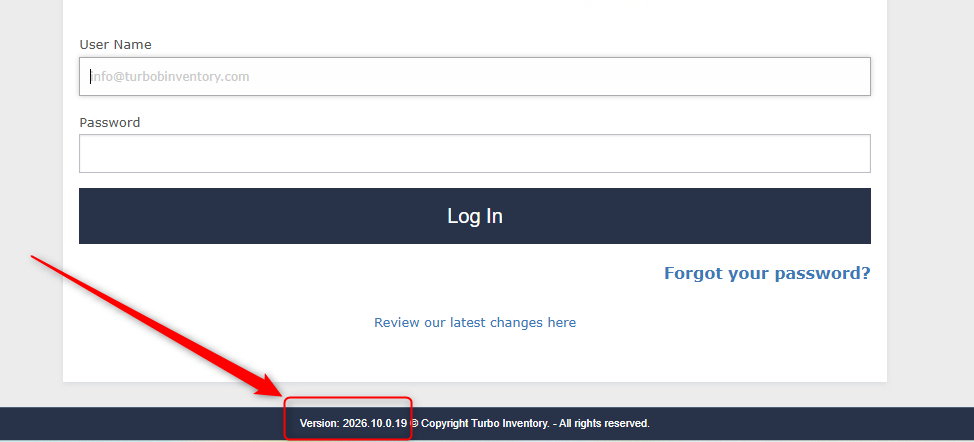
The exact behaviour of Generate PO Number may vary slightly by version, for example whether it creates a draft you fill in later or not. (You can check your version by checking the bottom of your Turbo login screen as below). Any Queries on this please reach out.
Dont forget the Turbo mobile app for recieving goods!
Turbo’s mobile app gives you two ways to receive stock: with a purchase order, or without one.
Receiving with a purchase order on the Mobile App
Tap Receive, then choose Receive with Purchase Order. The menu layout can differ depending on your administrative permissions.
- Pick the supplier. The app then lists that supplier’s purchase orders waiting to be received, oldest first. If the delivery turns out not to be linked to a PO, you can switch to Receive Without a Purchase Order from this screen.
- Tap the PO. The app shows the items and the quantities expected, and you can decide whether to print labels after receiving.
- Enter the invoice number if you have it, plus the receipt date, then tap each item to enter how many arrived, such as 20 arrived out of the 30 that were ordered.
- You can scan items with the device camera or a connected barcode scanner, adjust quantities with plus and minus buttons, and, if your permissions allow, change the item cost while receiving.
- Tap Finish and Sync to send the receipt to Turbo, and stock levels update immediately.
Receiving without a purchase order on the Mobile App
- Choose Receive without Purchase Order and select the supplier.
- Set the receiving date and add optional details such as invoice numbers or document references. You can also pick a label type to print labels automatically after receipt.
- Tap Add Items, then add each one by typing a description, scanning it, or entering its stock code, and enter the quantity received. You can also set options such as stock type, pack size and bin location.
- For batch-tracked products, choose Batch when adding the item and enter the batch number, expiry date and quantity.
- Tap Save, review the summary, then tap Finish and Sync.
Good to know (Re the Mobile App)
- It needs an internet connection. Receiving is an online-only module, so the device must be connected while you use it. Check your Wi-Fi reaches the goods-in area.
- Enter the supplier’s invoice number when you receive. This makes it easier to convert the goods receipt into a supplier invoice later.
Key terms
Term | Meaning |
|---|---|
Purchase order (PO) | Your formal order to a supplier: items, quantities, prices and delivery details |
PO number | The unique reference that links the PO, delivery docket, receipt and invoice |
RFQ | Request for Quote: asking suppliers for prices before you commit to an order |
Receiving order | Booking goods into stock in Turbo, with or without a PO |
On order | Stock on submitted POs that hasn't arrived yet |
Reorder level | The stock level at which a product should be reordered |
Three-way match | Checking the invoice against the PO and the goods received before paying |
Information correct as of October 2026.

Was this article helpful?
That’s Great!
Thank you for your feedback
Sorry! We couldn't be helpful
Thank you for your feedback
Feedback sent
We appreciate your effort and will try to fix the article