What the Sales module is for
The Sales module is where you sell stock to customers and record the money they owe you. It covers the full outbound journey: quoting a price, taking the order, sending out the goods, invoicing the customer and recording their payment.
Sales connects to the rest of Turbo. Stock you sell comes off your stock levels, sales orders can trigger purchase orders for stock you don't have, and invoices and payments sync to your accounting package, such as Big Red Cloud, Xero, QuickBooks or FreeAgent.
In short, if stock leaves the business to go to a customer, it should go out through Sales. That is what keeps your stock levels, customer balances and income accurate.
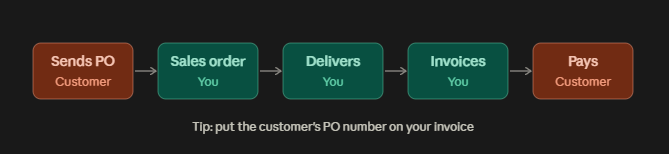
The usual flow looks like this: The customer sends a PO, you create a sales order (or a quote, then convert it), you deliver, you invoice with their PO reference, and they pay.
In Turbo Inventory, if you look at the left side menu panel and expand the Sales Option, you will see the below options available:
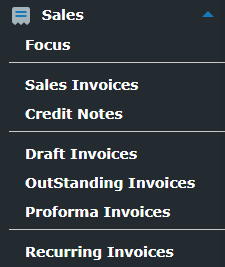
- Focus: This is an dashboard of your sales activity. You can compare sales here between the previous Week, Year etc.
- Sales invoices: These are the real, finalised invoices you’ve issued to customers. Each one asks for payment and counts as a sale in your accounts.
- Credit notes: A credit note partly or fully cancels an invoice, for example when goods come back, an item was faulty, or you overcharged. It reduces what the customer owes rather than deleting the original invoice.
- Draft invoices: These are invoices you’ve started but not finalised. They don’t count as sales and the customer hasn’t received them yet. Once you finalise one, it moves into Sales invoices.
- Outstanding invoices: These are invoices you’ve issued that the customer hasn’t fully paid yet. “Outstanding” doesn’t mean late. It only becomes overdue once the due date passes. This is the list to check when chasing payments.
- Proforma invoices: A proforma is a preliminary invoice sent before the sale is final, often so the customer can pay upfront or get internal approval. It’s not a real invoice, so it doesn’t count as a sale or create VAT. You convert it to a proper sales invoice once the deal goes ahead.
- Recurring invoices: These are templates that automatically create the same invoice on a schedule, such as monthly, for regular charges like rentals, subscriptions or service contracts. You set one up once and the software generates each invoice when it’s due.
How sales flow through Turbo
A typical sale in Turbo runs: Quote → Sales Order → Picking and Dispatch → Sales Invoice → Customer Payment.
Not all sales need to follow every step, but this is the full route available.
- Quote. The customer asks for a price. You send a quote, and if they accept, you mark it as won and turn it into a sales order.
- Sales order. The customer confirms what they want. The sales order records the items, quantities, prices, the customer's own PO number and the delivery date.
- Picking. Staff pick the items from the shelves. A sales order shows as Partially Picked while some items are still to be picked.
- Dispatch. The goods leave the building with a dispatch note, which the customer signs or keeps as proof of delivery.
- Sales invoice. Once the order is ready, it appears in the Ready To Invoice tab and you invoice it. The order then shows as Invoiced.
- Customer payment. The customer pays, either at the time of sale or later on account, and you record the payment against the invoice.
As well as these order statuses (such as Pending, Partially Picked and Invoiced), Turbo lets you add your own workflow statuses, such as Approved or On Hold.
These control which orders can be picked and are set up under Settings > Tools > Sales Order Workflow (Creating Sales Order Workflows).
Why use a sales order?
A sales order (often shortened to SO) is your record of what a customer has agreed to buy, at what price and by when. It sits between the quote and the invoice, and it pays for itself in several ways.
- Stock is reserved. Items on a sales order are set aside for that customer, so they aren't sold twice.
- The warehouse knows what to pick. Sales orders feed the picking list, so staff work from one clear list of what to send out.
- Shortages show early. If you don't have enough stock, you can raise a purchase order against the sales order straight away.
- Part deliveries are tracked. If you send some items now and the rest later, the order keeps track of what is still owed to the customer.
- Invoicing is quick and accurate. The invoice is built from the order, so prices and quantities match what the customer agreed.
- Orders can be held or approved. Workflow statuses let you hold an order, for example until payment arrives or a dispute is sorted, so it isn't picked by mistake.
- Customers get a reference. You can record the customer's own PO number on the order, which they will expect to see on your invoice.
(1) Creating a quote
A quote tells the customer what you can supply and at what price, without committing any stock. Use one whenever a customer asks for a price before ordering.
Navigation: Go to Quotes and click the '+ New Quote' icon at the bottom right of the screen.
- Select the customer, or quick-add a new one.
- Add the items and quantities. Prices fill in from the product record. Adjust them if you are offering a special price.
- Add notes such as delivery terms or how long the quote is valid for.
- Save and email the quote to the customer.
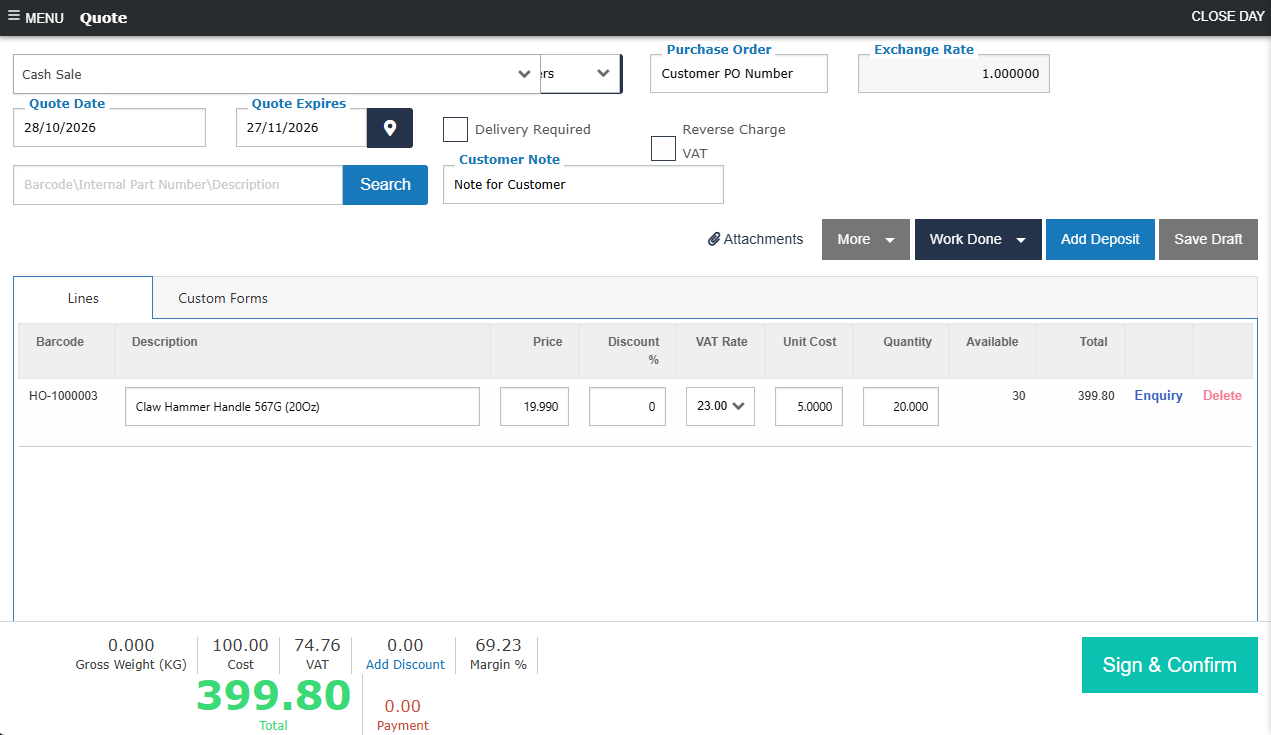
NOTE: If a customer sent you a PO, write their PO number on your Quote, Sales Order & Invoice in the relevant fields.
Getting approval.
If customer approvals are switched on, the customer can open the quote from the email and click Approve or Reject, adding their name and signature.
Approved quotes show a signature icon, and you can use the Approved filter in Quotes to find them. If the customer confirms by phone or email instead, you can go ahead without their signature.
Converting the quote.
In Quotes, click the three dots beside the quote and choose what to create next.
Depending on which modules you have, the options can include Sales Order, Sales Invoice, Proforma Invoice, Work Order or Hire Contract.
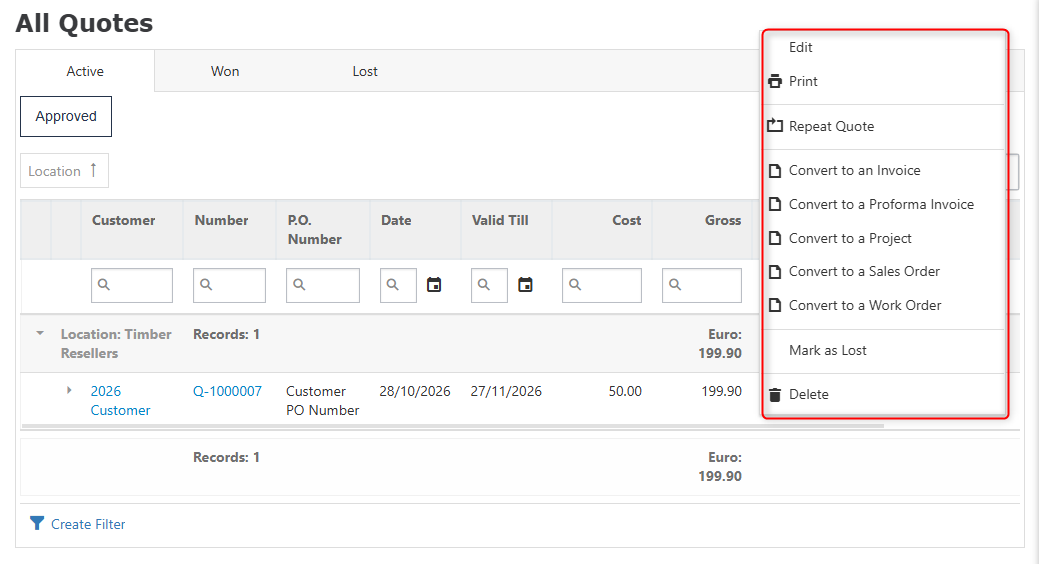
NOTE: A quote is only marked as Won when the new document is saved. If you start converting and close without saving, the quote stays active, so you can pick a different option (How to mark a Quote as Won).
If the customer declines, mark the quote as Lost and record the reason, so you can see later why quotes are lost.
(2) Creating a sales order
A sales order records a confirmed order from a customer. You can create one by converting from a quote (above) or from scratch (below).
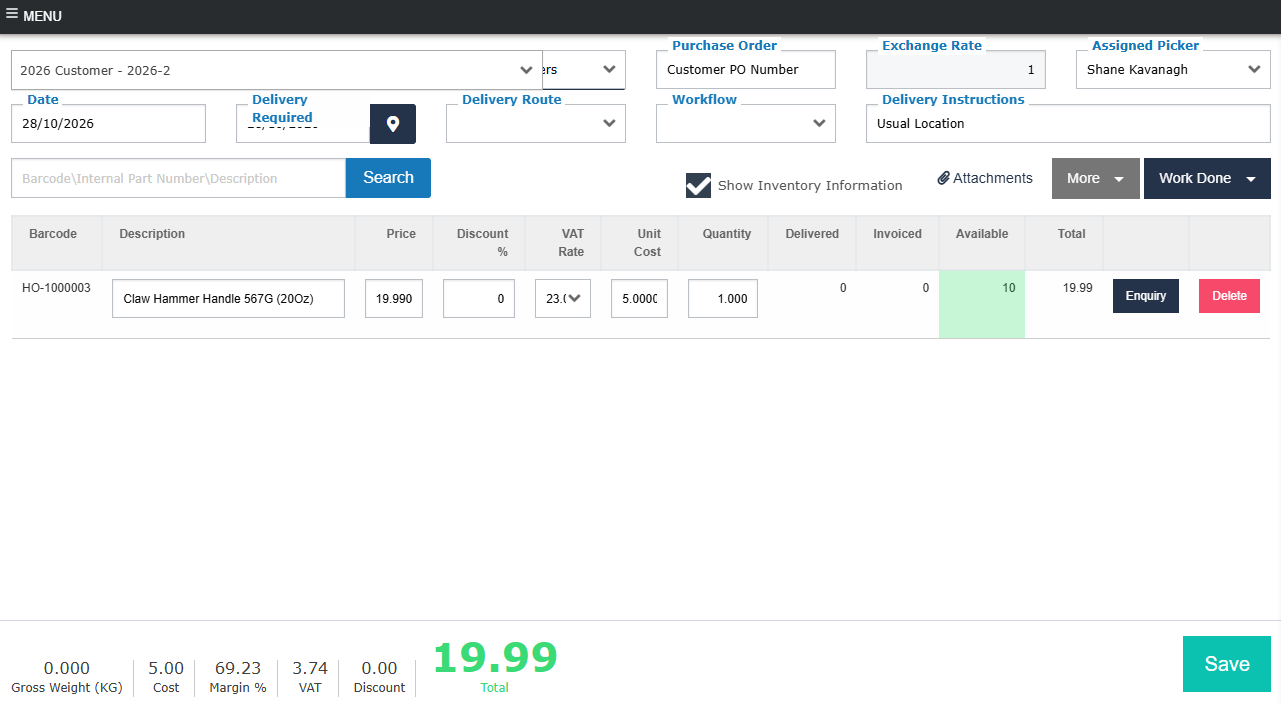
Navigation: Go to Sales Orders in the left-hand menu and click New Sales Order at the bottom right of the screen.
- Select the customer from the drop-down list. If they are new, use Quick Add to create them on the spot.
- Enter the order details: the customer's PO number, the order date and the delivery required date.
- Set the workflow and pickers if needed. Choose a workflow status, such as Approved or On Hold, and assign the staff who will pick the order.
- Add the products. Search for each product or scan its barcode. Each one appears as a line on the order.
- Check quantities and prices. Make sure they match what the customer agreed, especially if the order came from a quote.
- Click Save to create the sales order (How to create a Sales Order).
Not enough stock? If you can't fill the order from stock, you can raise a purchase order against the sales order. See How to create a Purchase Order against a Sales Order.
Holding orders.
Orders set to On Hold don't appear on the picking list. Change them to Approved when they are ready to go. This is useful when you're waiting on payment or sorting out a dispute with the customer.
(3) Picking and dispatching the order
Once a sales order is saved and approved, it appears on the picking list. Picking and dispatch happen in the Warehouse menu, on the desktop or the mobile app.
Navigation: Go to Warehouse > Pick Lists.
- Review the picking list. It shows every sales order waiting to be picked, whether the items are in stock, the assigned picker and each order's status. You can filter by delivery date.
- Assign a picker if needed. Select the orders, click Assign Picker, choose the person and click Assign. If your settings allow free picking, anyone can pick any order.
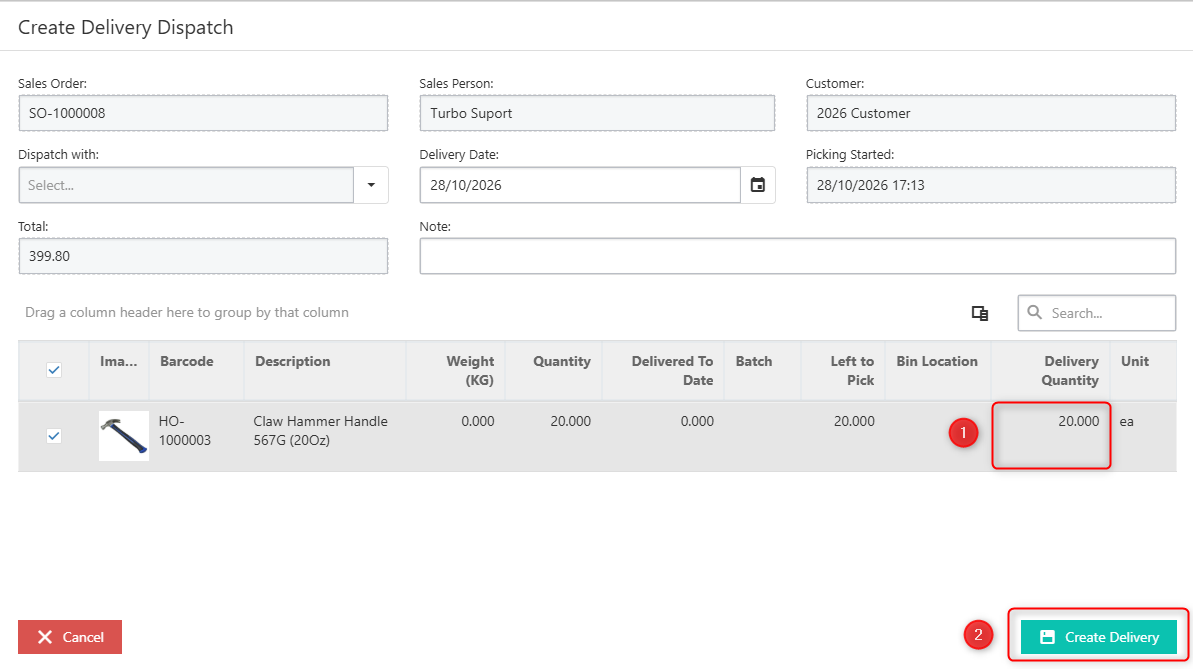
- Pick the order. Click Pick beside the sales order. For each item, type the quantity picked or tick the box. Click a product's picture for a larger view to check you have the right item.
- Add delivery details. Update the delivery date if needed, choose who is dispatching the order and add any delivery notes.
- Click Create Delivery. Turbo creates the delivery and its paperwork, and the sales order moves to Dispatched (How to create a Dispatch Note for a Sales Order).
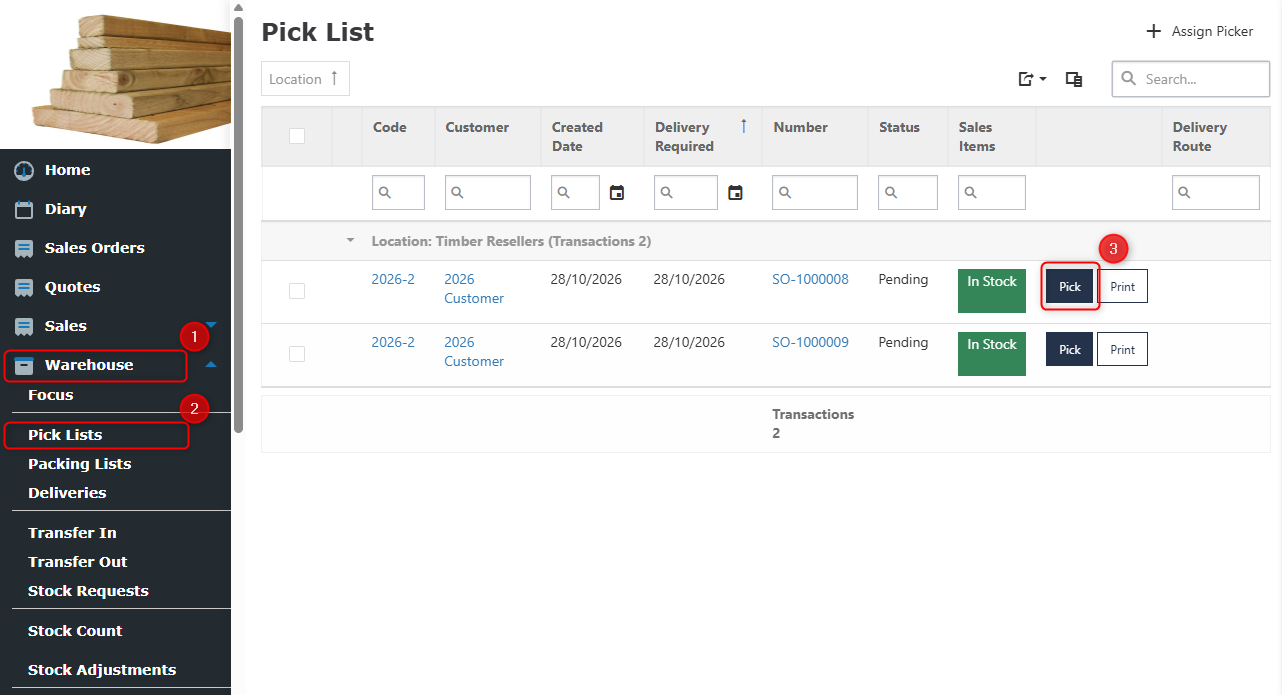
After Clicking Pick (above) we are presented with this screen (below) where we enter the quantity we actually picked and finally, create the Delivery.
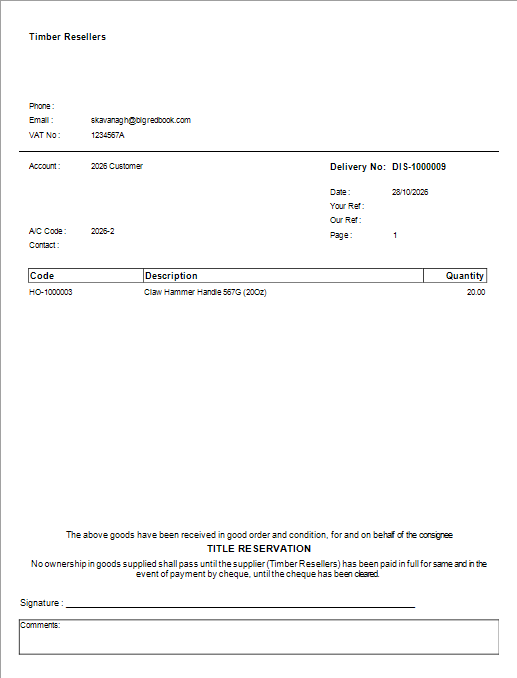
After Creating the Delivery, we will be brought straight to the delivery docket so we can print it straight off and hand it to the Driver handling the Delivery.
Part orders. If only some items can go now, pick and dispatch those. The rest stay on the sales order until they are available.
Staff can pick on the Turbo mobile app as well, and the steps are much the same. This lets pickers work from a tablet or phone on the warehouse floor.

(4) Invoicing the sales order
Once the goods have gone out, the sales order is ready to invoice. The invoice is built from the order, so prices and quantities match what the customer agreed.
Navigation: Go to Sales Orders > Ready To Invoice tab, find the order and click the three dots.
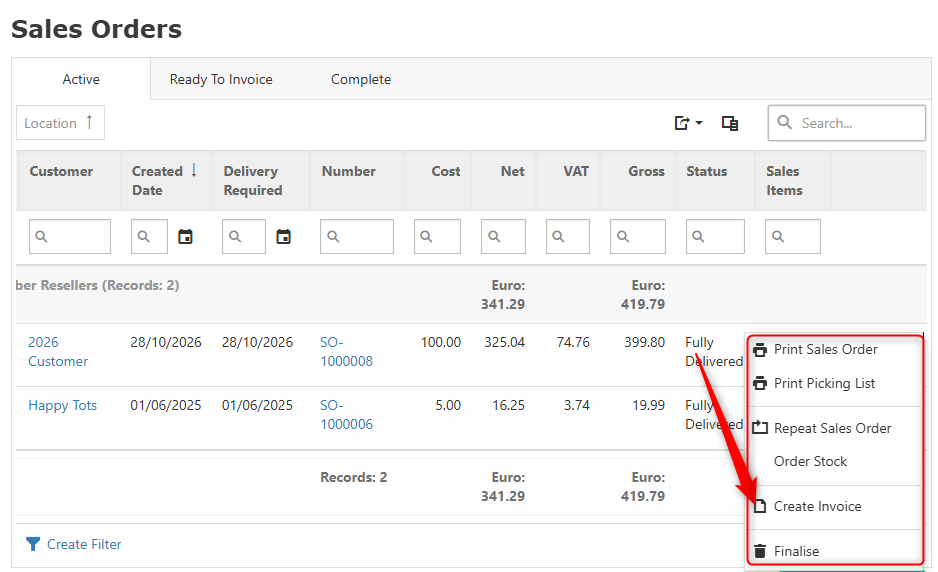 The three dots you select to get the pop up options shown above are hidden behind the popup itself.
You then click Create Invoice, this creates the invoice and charges it to the customer's account.
Before you post, check that the customer's PO number is on the invoice, as many customers won't pay without it. Once posted, you can email the invoice straight to the customer from Turbo, and it syncs to your accounting package.
You will be given the option to email it right away then and there, you can also find the invoice later by going to Sales > Invoices. If you find your Invoice and select the View button to the right hand side of the screen, you will be able to Mark the Invoice as Paid or credit the Invoice as needed.
(5) Recording customer payments
How you record payment depends on whether the customer pays straight away or on account.
- Cash sale. The customer pays at the time of the sale. You post the payment when you post the invoice, so the invoice is paid in full from the start.
- Credit sale. The customer pays later. You Charge to Account, which adds the invoice to the customer's balance. When their payment arrives, you record it against the invoice so their balance comes down (How do I create a Sales Invoice).
Check whether a customer is set up as cash or credit before you post, as this decides which option applies. For credit customers, record each payment against the right invoice.
That keeps their statement accurate and shows clearly which invoices are still unpaid.
Payments sync to your accounting package along with the invoices, so your accounts and Turbo show the same customer balances.
When you might not use a sales order
Sales orders add a step, and not every sale needs one. If the customer takes the goods there and then, you can go straight to a sales invoice.
Common reasons to skip a sales order include:
- Counter and cash sales. The customer is standing in front of you, pays and leaves with the goods.
- Small, simple sales. A single item with nothing to pick or deliver later.
- Services or charges. Labour, delivery fees or other charges with no stock to pick.
Creating a sales invoice directly.
Click Quick Add – Sales Invoice on the Home Screen, or go to Sales > Sales Invoices and click Add Sales Invoice at the bottom right.
Select the customer, scan or add the products, add the customer's PO number if they gave one, then post the payment (cash sale) or charge to account (credit sale).
For cash sales, use Bill To if you want the customer's details printed on the invoice. Creating invoices depends on your user permissions, so ask your administrator if you can't see the option (How do I create a Sales Invoice).
Pro forma invoices.
A pro forma invoice is a request for payment before the goods are supplied, for example when a new customer must pay upfront. It shows the customer what they will owe but isn't a final invoice and doesn't take stock. Once they pay, you raise the real invoice.
The trade-off is control. Without a sales order, stock isn't held for the customer in advance, there is no picking list and part deliveries aren't tracked. A good rule is to use sales orders for anything picked, delivered or sent in parts, and go straight to an invoice for over-the-counter sales.
Credit notes, returns and exchanges
A credit note reverses all or part of a sale, for example when a customer returns goods or was overcharged.
Turbo offers three ways to create Credit Notes.
(1) From an existing sales invoice (recommended).
Go to Sales > Sales Invoices, find the invoice and click View, then click Credit. Turbo builds a credit note with every item on the invoice.
Delete any lines you aren't crediting, then post it to the customer's account. If part of the invoice was credited before, only the items not yet credited appear.
(2) From the Credit Notes screen.
Go to Sales > Credit Notes and click Add New Credit Note. Select the customer, or Cash Sale for a counter refund, and scan or add the items.
Quantities are turned negative automatically, so entering 14 becomes -14. Post it and choose how you are refunding the customer.
(3) From the Sales Invoice screen.
On a new sales invoice, enter the returned item with a negative quantity. If the total is negative, Turbo treats it as a credit note.
For an exchange, enter the returned item as negative and the replacement as positive. If the total is positive, Turbo posts it as a sales invoice, putting the returned item back in stock and taking the new one out.
Settings worth knowing.
If the option is enabled, Turbo can ask, every time, whether the stock is coming back or you are only giving credit. That matters when a customer returns damaged goods you won't resell.
You can also switch on a setting called 'Must Have Original Invoice', so no credit note can be created without linking it to an existing sales invoice.
Key terms
Term | Meaning |
|---|---|
Quote | A price offered to a customer before they commit. Won when converted and saved; lost if declined |
Sales order (SO) | A confirmed customer order: items, quantities, prices and delivery date |
Customer PO number | The customer's own order reference, recorded on the sales order and invoice |
Workflow status | A status you define, such as Approved or On Hold, that controls whether an order can be picked |
Picking list | The list of sales orders waiting to be picked in the warehouse |
Dispatch / delivery | The record of goods leaving the building for the customer |
Ready To Invoice | The Sales Orders tab listing orders ready to be invoiced |
Sales invoice | The bill to the customer for goods or services supplied |
Pro forma invoice | A request for payment before goods are supplied; not a final invoice |
Cash sale | A sale paid for at the time it is made |
Charge to Account | Adding an invoice to a credit customer's balance, to be paid later |
Credit note | A document that reverses all or part of a sale |

Was this article helpful?
That’s Great!
Thank you for your feedback
Sorry! We couldn't be helpful
Thank you for your feedback
Feedback sent
We appreciate your effort and will try to fix the article